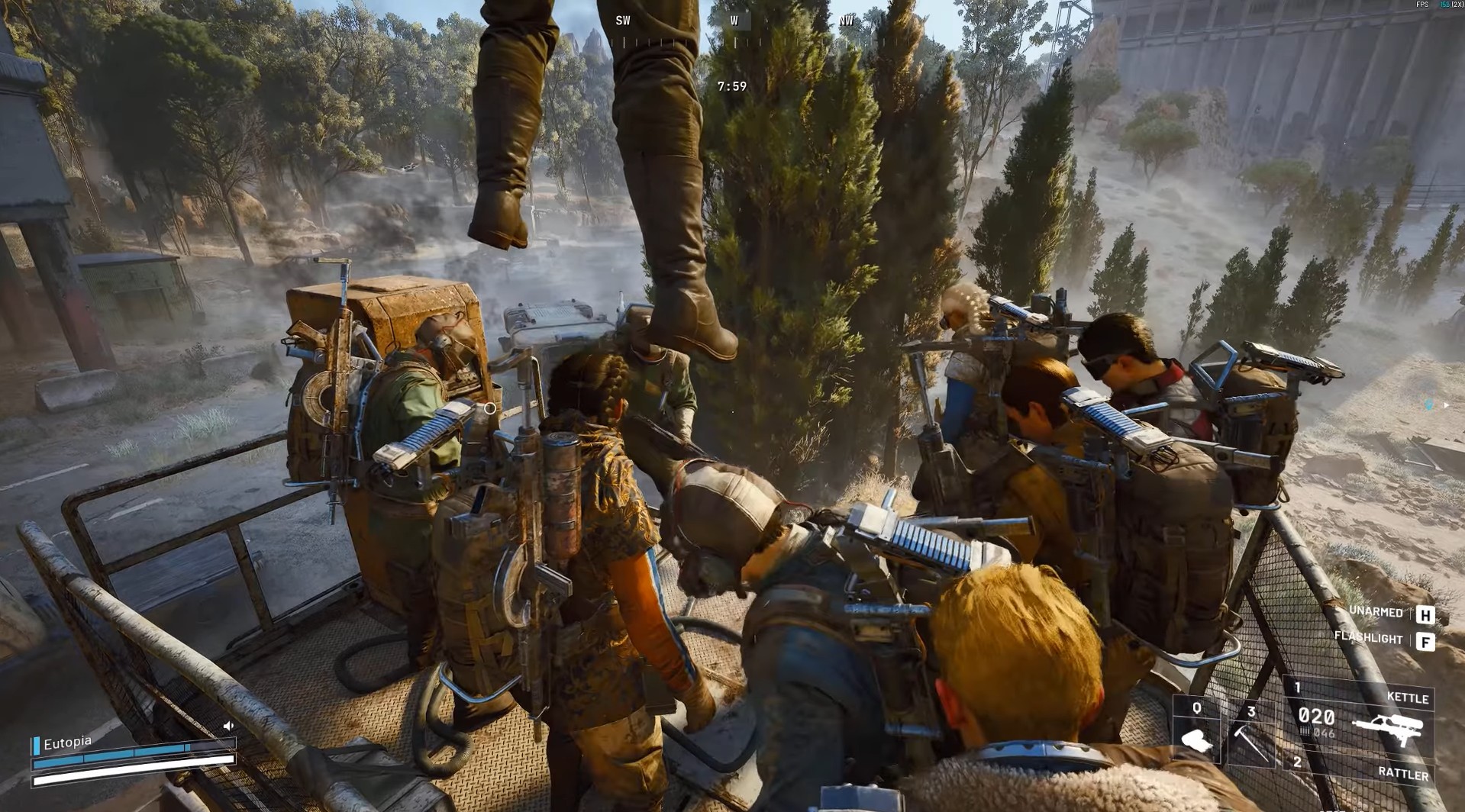
Discover everything you need to know about the best PC and Controller settings in ARC Raiders to help you get maximum performance.
The best settings in ARC Raiders give a smooth and responsive gameplay experience. Opting for the wrong settings can badly influence your game. The Display settings control resolution, screen mode, and frame options. While the Graphics settings control texture quality, shadows, and effects, the ARC Raiders support modern upscaling and latency reduction tools.
Use the settings that suit your playstyle and synergize with the gameplay strategies. Tweak settings from each category to impact different aspects of how the game looks and works. The best settings for ARC Raiders are geared towards optimizing the game’s performance on PC.
Best PC Graphics Settings
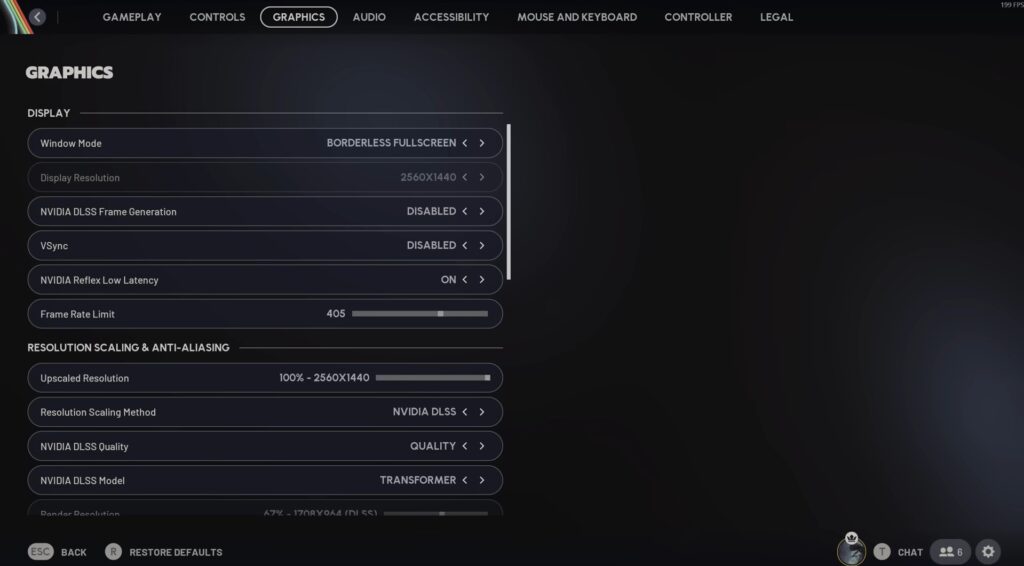
Tune the recommended graphics settings to strike a good balance between smooth performance and visual clarity.
Display
These settings allow you to enjoy the visuals without sacrificing too much performance. Choose a frame rate limit for a better experience.
| Setting | Best Options |
|---|---|
| Window Mode | Borderless Fullscreen |
| Display Resolution | 2560×1440 |
| NVIDIA DLSS Frame Generation | Disabled |
| VSync | Disabled |
| NVIDIA Reflex Low Latency | On |
| Frame Rate Limit | 400 |
Resolution Scaling & Anti-Aliasing
Resolution scaling lets you render the game at a lower internal resolution than your display, then upscale it to your monitor’s native resolution. ARC Raiders supports modern upscaling technologies like NVIDIA DLSS. Anti-aliasing smooths jagged edges caused by pixel rendering.
| Setting | Best Options |
|---|---|
| Upscaled Resolution | 100% |
| Resolution Scaling Method | NVIDIA DLSS |
| NVIDIA DLSS Quality | Auto |
| NVIDIA DLSS Model | CNN |
| Render Resolution | 67% |
Graphics
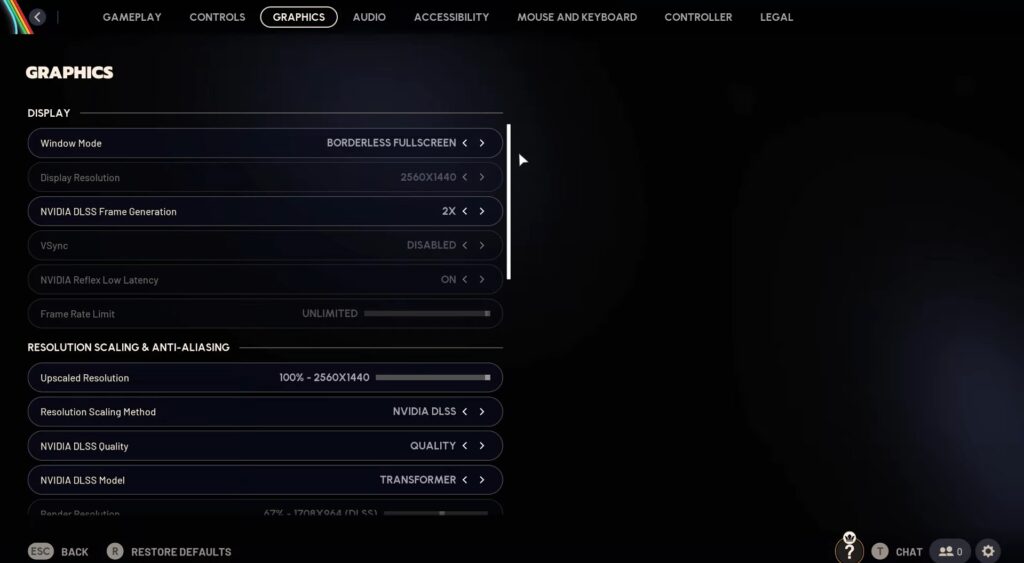
The field of View expands your visible area. Wider means better awareness, but it can reduce performance slightly. Motion Blur adds camera blur when moving, mostly for visual flair.
| Setting | Best Options |
|---|---|
| Field of View | 80 |
| Motion Blur | Disabled |
Ray Tracing
Ray tracing simulates how light behaves. This is very demanding and is used only on high-end GPUs.
| Setting | Best Options |
|---|---|
| NVIDIA RTX Global Illumination | Off |
Quality
The game pushes most graphics options to High or Ultra, aiming for realism and cinematic lighting if you select the Quality preset in Arc Raiders. The Effects improve explosions, dust, fog, and volumetric effects. Reflections increase mirror-like surfaces and puddles. Shadows adds soft, dynamic shadows with realistic fading.
| Setting | Best Options |
|---|---|
| Overall Quality Level | Custom |
| View Distance | Epic |
| Anti-Aliasing | Low |
| Shadows | Low |
| Post-Processing | Low |
| Texture | High |
| Effects | Low |
| Reflections | Medium |
| Foliage | Low |
| Global Illumination Resolution | Medium |
Advanced
| Setting | Best Options |
|---|---|
| In-Game Performance Overlay | Disabled |
| Idle Energy Saving | Enabled |
| Inactive Window Energy Saving | Enabled |
Best Controller Settings
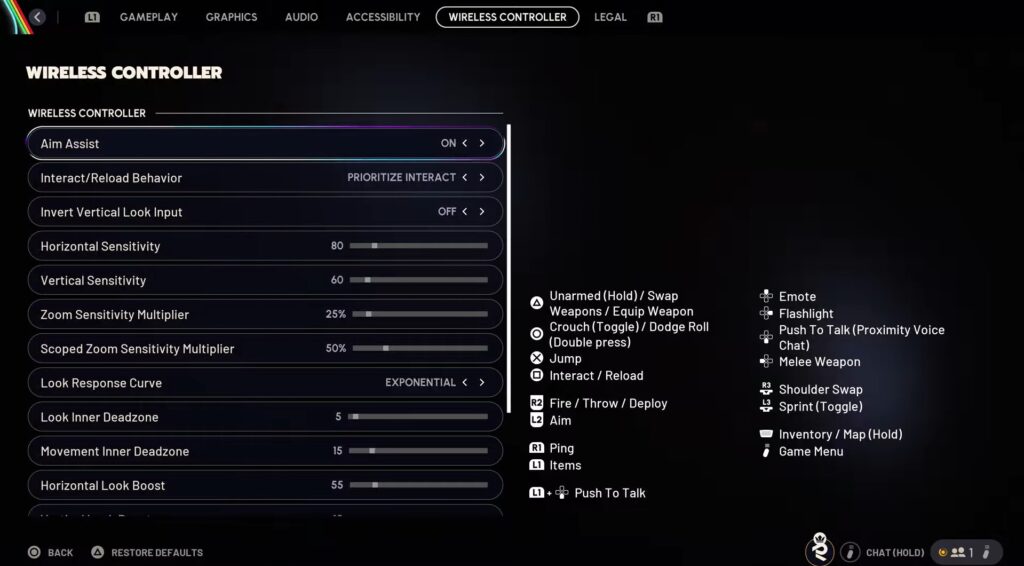
Open the pause menu or main menu, head to Settings, and then Controller to access Controller Settings in Arc Raiders. Change these settings by opening up the system interface and then going into the settings. Make sure to scroll down till you get to the Controller tab.
| Setting | Best Options | Why it’s Useful |
|---|---|---|
| Aim Assist | On | Helps a lot with target tracking. |
| Invert Vertical Look Input | On or Off | Doesn’t change performance much, but use what you’re comfortable with |
| Interact/Reload Behavior | Tap to Interact | Makes looting and interacting faster and smoother. |
| Horizontal Sensitivity | 80 | Good speed for turning to engage enemies without losing control. |
| Vertical Sensitivity | 55 | Slightly lower than horizontal, and helps control up/down aiming. |
| Zoom Sensitivity Multiplier | 40% | When ADS/zoomed in, slower movement gives better aim precision. |
| Scoped Zoom Sensitivity Multiplier | 50% | Slightly higher than ADS for scopes, so you can still track targets. |
| Look Response Curve | Linear | Provides the most direct stick and camera movement mapping. |
| Look Inner Deadzone | 5 | Minimises lag in input start-up and provides more immediate control. |
| Movement Inner Deadzone | 5 | Determines the size of the deadzone between when you push the stick and when the camera or character moves. |
| Horizontal Look Boost | 165 | Accelerates how quickly the camera turns horizontally when you continuously push the right stick. |
| Vertical Look Boost | 100 | Accelerates how quickly the camera turns vertically when you continuously push the right stick in a direction. |
| Look Boost Ramp-up Time | 0.5 | Gives you a “quick-turn” option when you need to snap on a target. |
| Zoom Horizontal Look Boost | 85 | Determine how quickly you can turn while aiming down sights. |
| Zoom Vertical Look Boost | 50 | Determine how quickly you can turn while aiming down sights. |
| Zoom Look Boost Ramp-up Time | 0.2 | For when you’re scoped and need a faster response. |