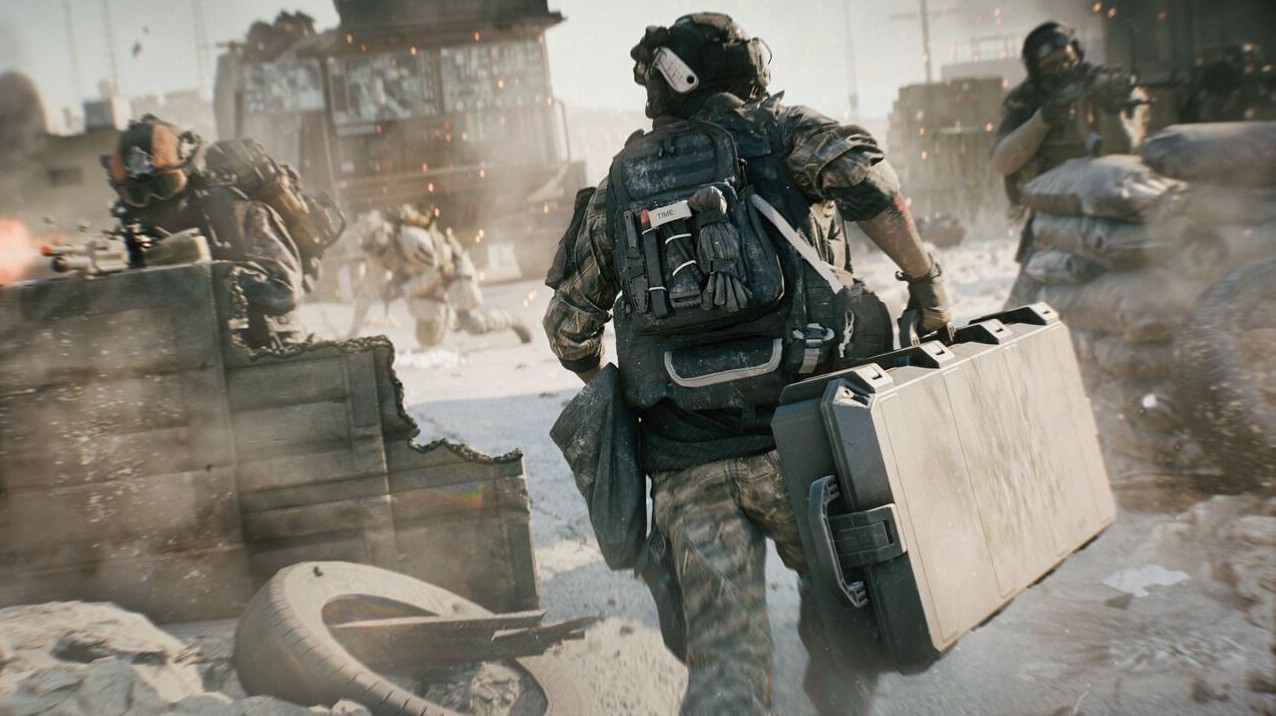
Discover everything you need to know about the best Battlefield RedSec settings for both PC and Consoles (XBOX, PS5). Optimize your graphics, aim, and sensitivity to make combat smoother, improve accuracy, and boost your overall performance. From controller sensitivity to advanced graphics tweaks, discover how to make combat easier and more responsive on any platform.
The best setting for PC and Console helps you achieve the smoothest gameplay, best visibility, and peak aim performance – no matter if you’re on PS5, Xbox, or PC. These settings are fully updated for Battlefield 6 Season 1, tested by RedSec, and fine-tuned for competitive play. It gives you high frame rate, crisp visibility, responsive aim, and clear positional sound for a competitive edge.
Table of contents
1. Graphics Quality Settings

These settings apply whether you’re in competitive mode or going for visual fidelity. If you want max FPS for multiplayer, pick Low/Medium.
| Option | Best BF Settings | What It Controls |
|---|---|---|
| Texture Quality | High | The resolution & detail of textures on surfaces |
| Texture Filtering | Overkill | Sharpness/clarity when viewing textures at an angle |
| Mesh Quality | High | Polygon complexity of objects. |
| Terrain Quality | Low | Detail and complexity of ground, floor, and terrain. |
| Undergrowth Quality | Low | Grass, plants, and small foliage complexity. |
| Effects Quality | Low | Explosions, muzzle flashes, particle effects |
| Volumetric Quality | Low | Smoke, fog, clouds, atmospheric effects |
| Lighting Quality | High | Quality of light effects |
| Local Light & Shadow Quality | Low | Nearby light sources & shadows. |
| Sun Shadow Quality | Medium | Shadows from sunlight, outdoor scenes |
| Shadow Filtering | PCF | Softness of shadow edges. |
| Reflection Quality | Low | Reflections off surfaces like water, glass, and metal |
| Screen Space Reflections (SSR) | Off | Real-time reflections from the game. |
| Post Process Quality | Low | Effects applied after render |
| Screen Space AO (Ambient Occlusion) & GI (Global Illumination) | Off | Soft shadows, subtle lighting between objects |
| High Fidelity Objects Amount | Medium | Density of high-res objects in the world. |
2. Advanced Graphics Settings
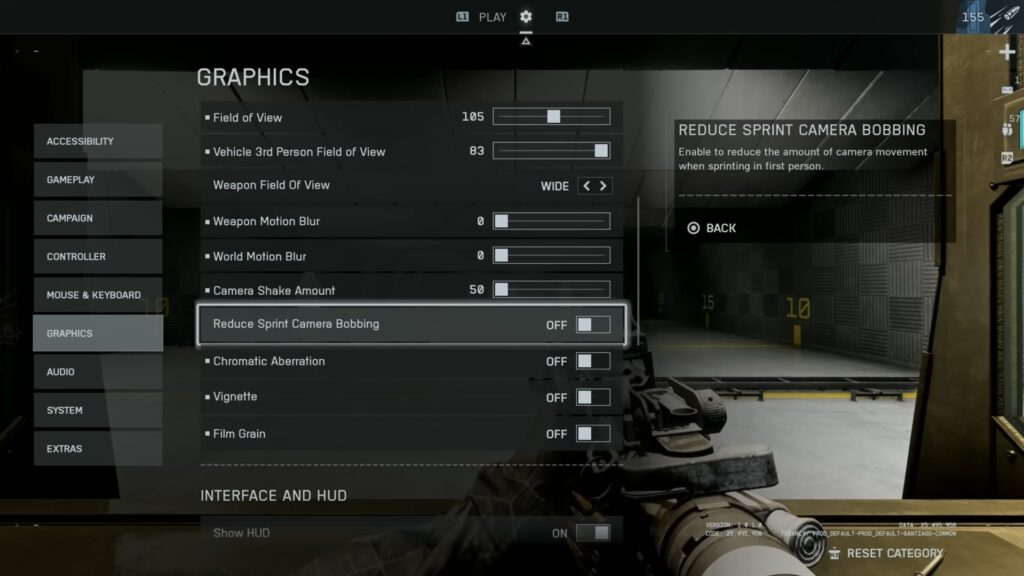
Your choice of Upscaling really depends on your GPU and resolution. Input latency matters a lot in multiplayer shooters: things like motion blur, frame generation, and future frame rendering.
| Option | Best BF Settings | What It Controls |
|---|---|---|
| Fixed Resolution Scale | 100 | The scale at which the game actually renders vs your native resolution |
| Frame Rate Limited | Off | Caps the framerate to a set number. |
| Dynamic Resolution Scale | Off | Lowers resolution to maintain performance. |
| Nvidia Reflex Low Latency | Enabled | Reduces input latency by influencing how frames are buffered. |
| Anti-Aliasing | Off | Not compatible with upscaling. |
| Upscaling Technique | Off | Depending on your GPU, go with DLSS or FSR. |
| Upscaling Quality | Off | Find the best |
| AMD FSR Frame Generation | Off | Generates extra frames by interpolation. |
| Frame Generation | Off | Frame Gen will improve performance without lag. |
| Future Frame Rendering | Off | Technique where frames are buffered ahead. |
| Performance Overlay | Simple | The overlay might be distracting. |
3. Best controller settings BF RedSec
Keep a controller for aerial combat if you prefer the accuracy of a mouse and keyboard. The game has multiple controller settings, making it easier to handle. You can tweak further based on your personal style and hardware.
3.1 Aim
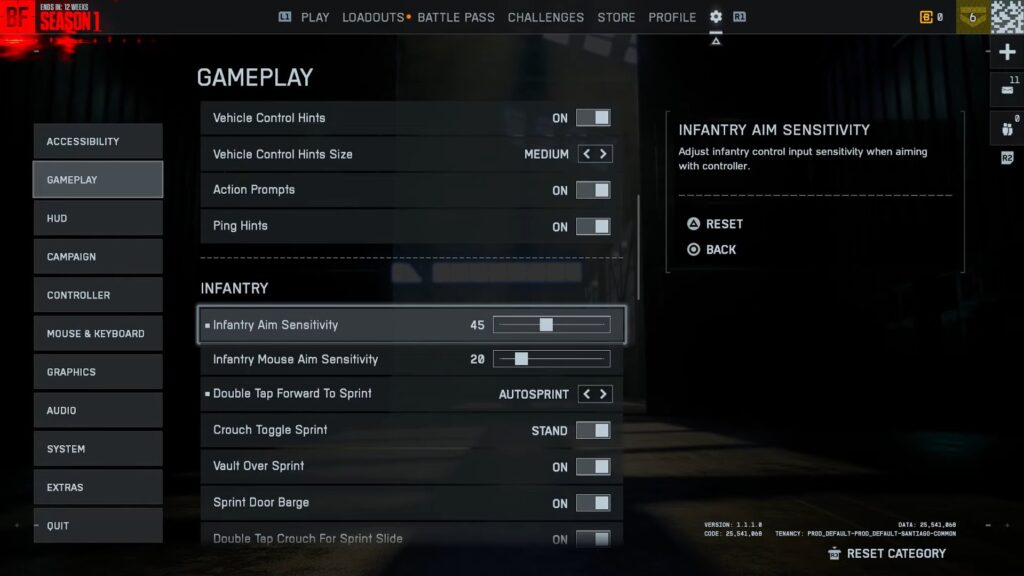
Adjust aim settings till you find a comfortable turning rate. Turn Uniform Infantry Aiming On, scroll down to find Invert Vertical Look, and turn that off.
| Option | Best Settings |
|---|---|
| Infantry Aim Sensitivity | 40 |
| Invert Vertical Look – Infantry | Off |
| Field of View | 105 |
| Vertical Aim Ratio | 56 |
| Uniform Infantry Aiming | On |
3.2 Movement
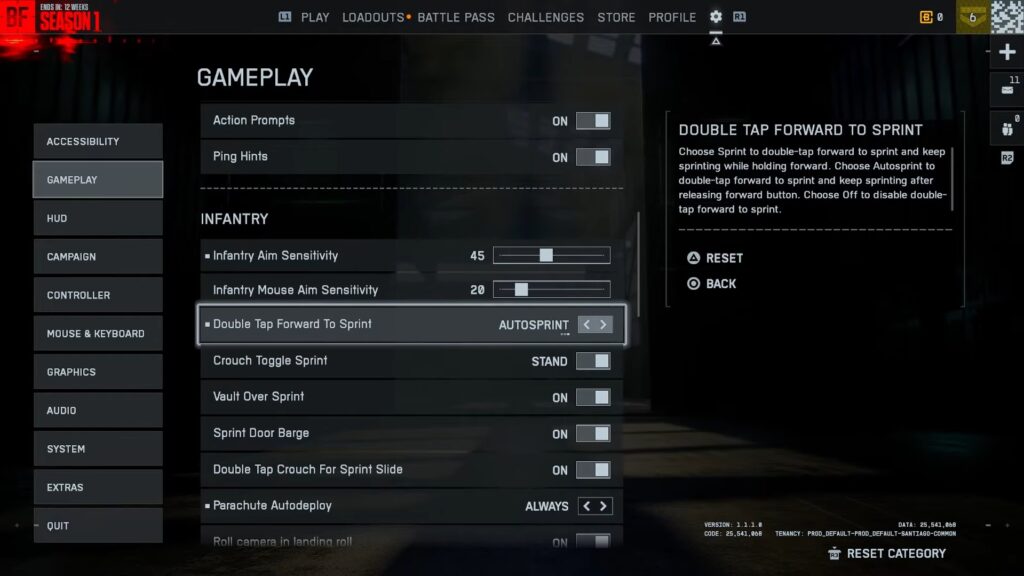
The best movement settings for Battlefield 6 are personal preferences. However, focus on maximizing responsiveness for movement and aiming. Consider setting buttons to “Alternate” to swap melee and crouch, which can make sliding easier by pressing the right stick.
| Option | Best Settings |
|---|---|
| Infantry Sprint | Toggle |
| Double Tap Forward Sprint | Off |
| Sprint | L3/LS |
| Crouch Toggle Sprint | Stand |
| Vault Over Sprint | On |
| Slide | N/A |
| Crouch Slide | All |
| Double Tap Crouch For Sprint Slide | Off |
3.3 Zoom
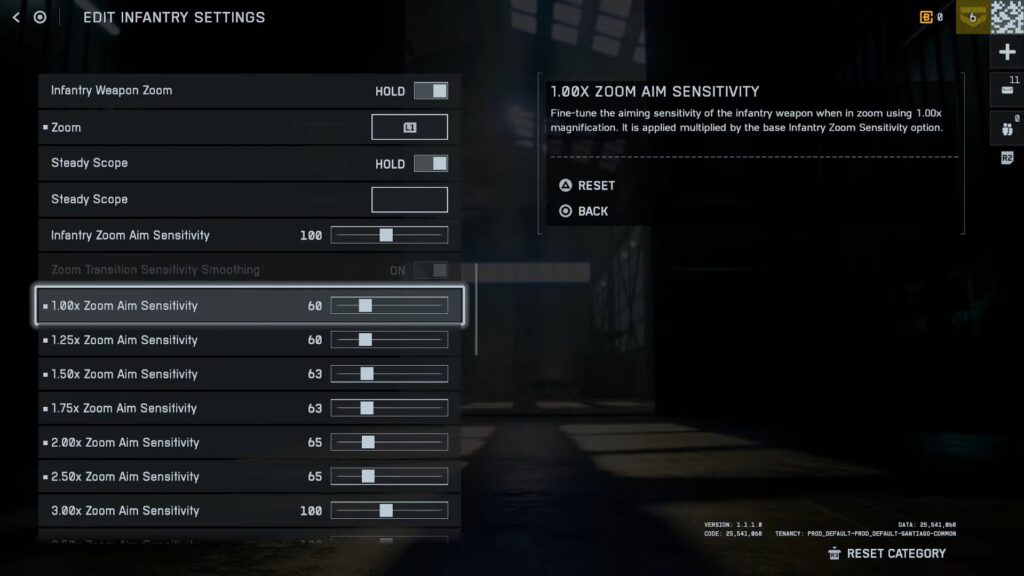
Set both Infantry Weapon Zoom and Steady Scope to Hold rather than toggle. This gives you instant control over when you’re aiming down sights.
| Option | Best Settings |
|---|---|
| Infantry Weapon Zoom | Hold |
| Zoom | L2/LT |
| Steady Scope | Hold |
| Infantry Zoom Sensitivity | 90 |
| Zoom Transition Sensitivity Smoothing | On |
4. Other Settings
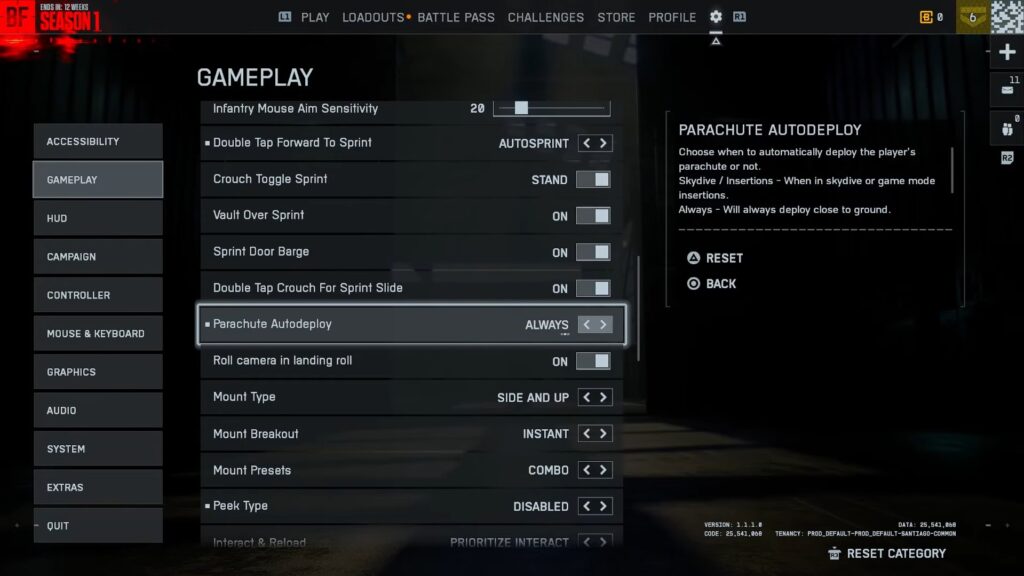
Tune these settings like Revive, Reload, Mount Breakout, and Mount Type for a better gameplay experience in Battlefield Redsec.
| Option | Best Settings |
|---|---|
| Parachute Autodeploy | Skydive / Insertion |
| Interact & Reload | Prioritize Interact |
| Interacts | Toggle |
| Skip Revive | Hold |
| Request Revive | Toggle |
| Invert Demolition Charge | Off |
| Mount Breakout | Instant |
| Mount Type | Side and Up |
| Mount Presets | Combo |
| Peek Type | Side and Up |
4.1 Flick look
Play a few rounds and see if the turn-overs feel smooth or too abrupt. Mode = Always means the flick-look behavior triggers anytime you quickly push the stick beyond the threshold.
| Option | Best Settings |
|---|---|
| Infantry Flick Look Mode | Always |
| Infantry Flick Look Threshold | 90 |
| Infantry Flick Look Speed | 100 |
5. Vehicle Controller Tuning
When driving large vehicles, slower sensitivity helps you make controlled turns and not overshoot corners or targets. You want a bit higher sensitivity so you can track quicker for turrets or gunners aiming at fast-moving targets.
5.1 Controller Vibration
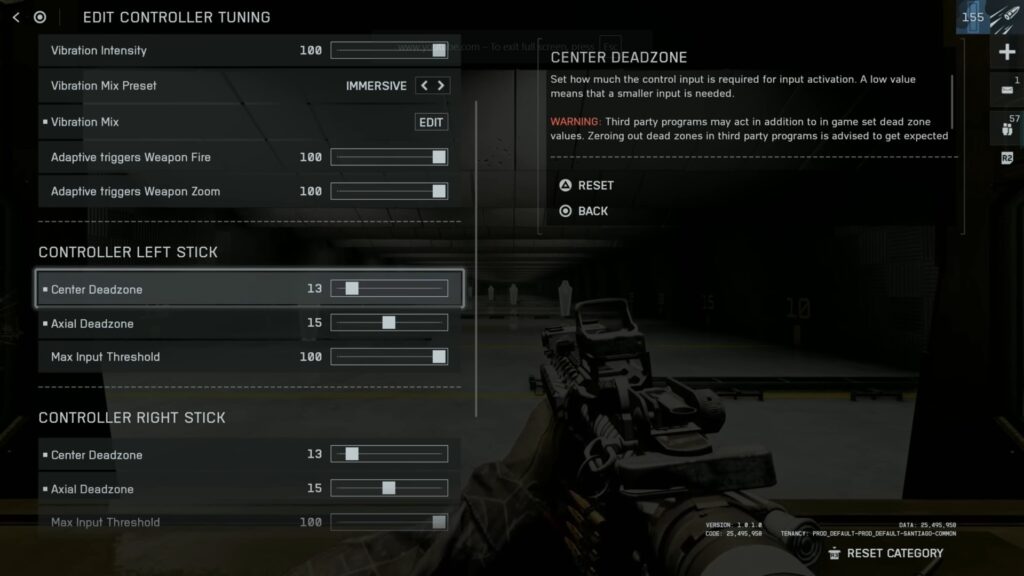
Vibration can introduce input distractions, especially in vehicles. Vibration interferes with micro-adjustments when tracking targets.
| Option | Best Settings |
|---|---|
| Controller Vibration | Off |
| Vibration Intensity | 0 |
| Vibration Mix Preset | Immersive |
| Vibration Mix | Default |
5.2 Controller Left Stick
The Center Deadzone controls how much you need to move the stick before input registers. Axial Deadzone balances diagonal movement. It helps prevent unwanted diagonal drift when moving straight. Max Input Threshold keeps the full range of motion.
| Option | Best Settings |
|---|---|
| Center Deadzone | 2 |
| Axial Deadzone | 5 |
| Max Input Threshold | 100 |
5.3 Controller Right Stick
Center Deadzone controls how much you must move the stick before the aim input registers. It keeps the diagonal aim smooth and consistent.
| Option | Best Settings |
|---|---|
| Center Deadzone | 2 |
| Axial Deadzone | 5 |
| Max Input Threshold | 100 |
6. Battlefield REDSEC Camera Settings
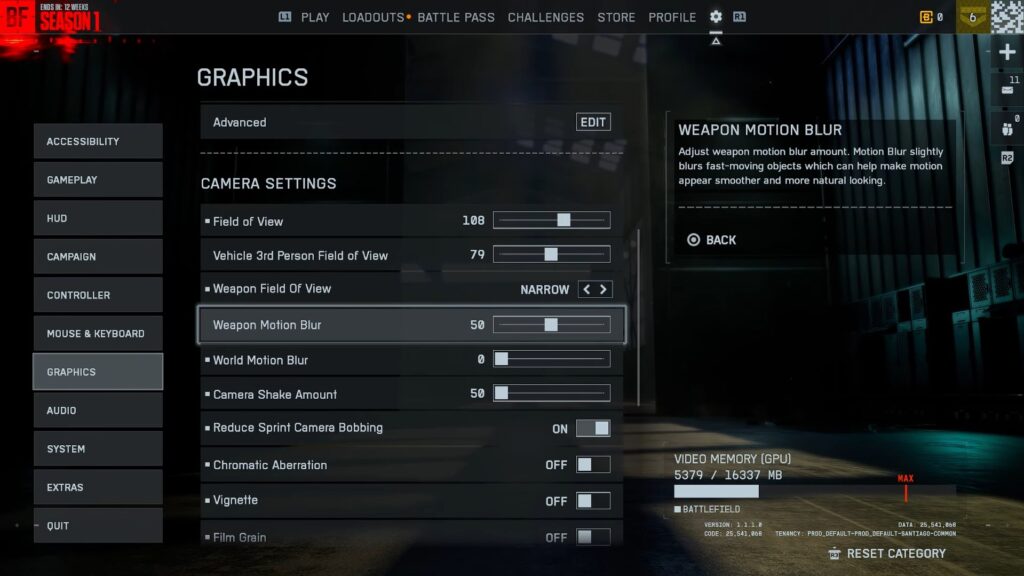
A higher FOV lets you see more around you, but going too high may make distant targets look smaller. Turning off or reducing these helps you keep a steady aim when tracking fast vehicles.
| Option | Best Settings |
|---|---|
| Field of View | 110 to 120 |
| Vehicle 3rd Person Field of View | 83 |
| Weapon Field of View | Wide |
| World Motion Blur | 0 |
| Weapon Motion Blur | 0 |
| Camera Shake Amount | 50 |
| Reduce Sprint Camera Bobbing | On |
| Chromatic Aberration | Off |
| Vignette | Off |
| Film Grain | Off |
7. Battlefield REDSEC Audio Settings
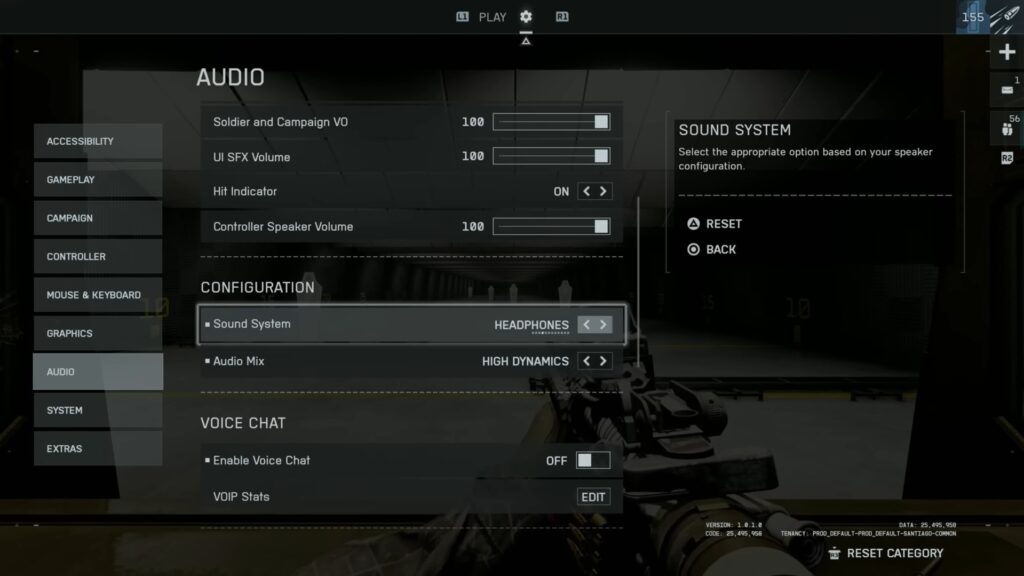
The audio settings help you hear footsteps, movement, vehicles, and other audio cues more clearly, making it ideal for competitive and team play. The Master Volume keeps the overall sound at a comfortable level.
| Option | Best Settings |
|---|---|
| Master Volume | 45 |
| Sound Effects Volume | 100 |
| Music Volume | 0 |
| Commander VO Volume | 100 |
| Soldier and Campaign VO | 60 |
| UI SFX Volume | 45 |
| Hit Indicator | On |